SonicWall SSL Administration
Installing and configuring an SSL certificate on a SonicWall firewall.

Introduction
A Certificate Signing Request (CSR) is required when ordering an SSL-certificate, this is generated from a private key.
If you wish to generate the private key yourself you will also have to generate the CSR, follow Generating a CSR followed by Installation of certificate ordered via CSR.
If you are using our CSR service, follow Installation of certificate from .PFX file
Generating a CSR
- Expand System
Click Certificates
Select Imported certificates and requests
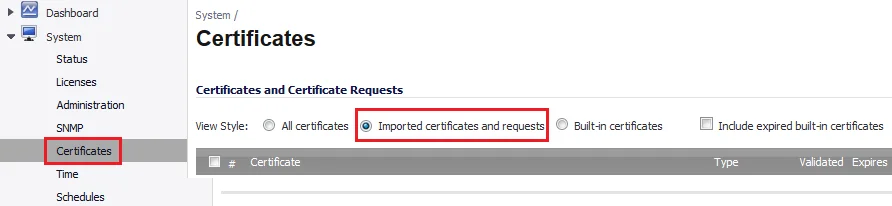
- Click New Signing Request

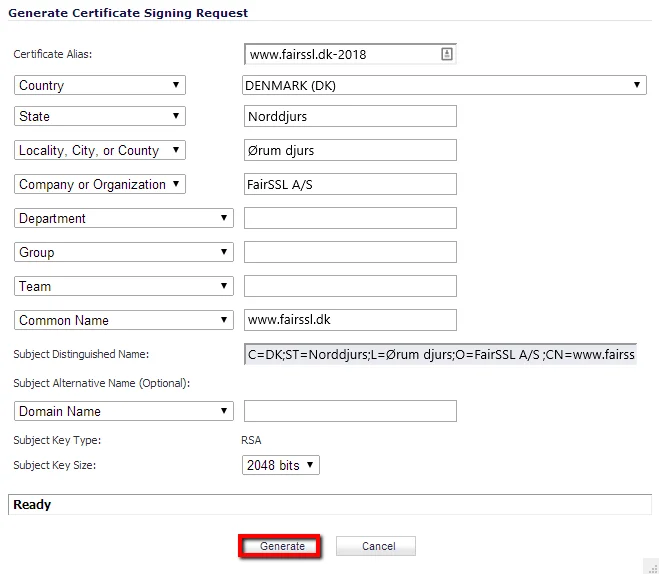
- Fill in the information:
- Certificate Alias: A friendly name so you can recognise the certificate, e.g. common name and year: www.fairssl.dk-2018
- Country (C): ISO-standard two-letter country code, must be capitalised. e.g.: DK
- State (S): State or municipality, in Denmark the municipality is used. e.g.: Norddjurs
- Locality (L): City name. e.g.: Ørum Djurs
- Organization Name (O): The full company name, exactly as presented in CVR. e.g.: FairSSL A/S (is only required for OV and EV certificates)
- Common Name (CN): The primary fully qualified domain name. e.g.: www.fairssl.dk
Leave Department, Group and Team empty.
Ensure Subject Key Size is at least 2048 bits
Click Generate
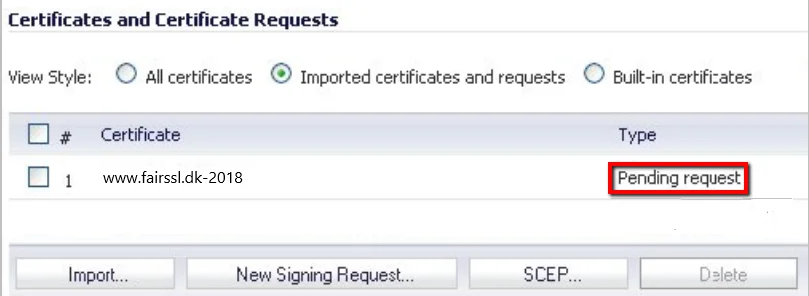
- The certificate will now says Pending in the list.
Click the download icon in the bottom right to download the CSR file.
- Open the CSR file with a text editor (e.g. notepad) and copy the entire text, incl. all the dashes at the beginning and end.
During the certificate ordering process you paste the text into the CSR field.
The following is an example of a complete CSR text:
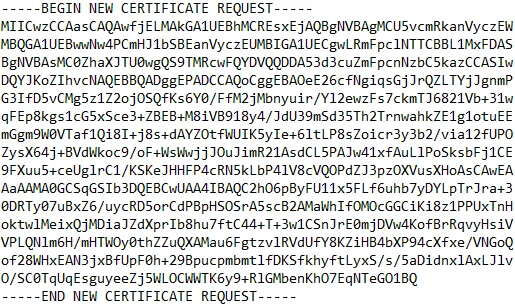
A CSR does not contain any confidential information, and there is no security risk by sending it through an unencrypted mail or similar.
Installation of certificate ordered via CSR
When installing the certificate you should install the intermediate certificate first.
If you received more than one intermediate certificate, follow Installation of intermediate certificate for each file before progressing to Installation of server certificate
Installation of intermediate certificate
- Expand System
Click Certificates
Select Imported certificates and requests
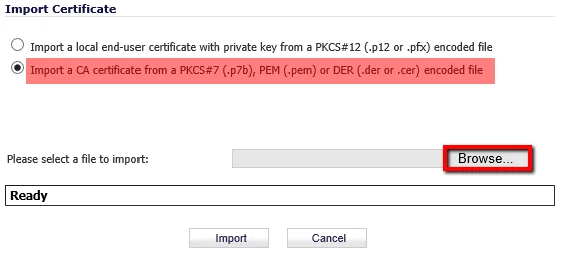
- Click Import

- Select Import a CA certifikate
Click Browse and select your intermediate certificate
Click Import
Installation of server certificate
- Expand System
Click Certificates
Select Imported certificates and requests
- Click the import icon on the right side of the pending request

- Click Browse
Select your certificate file
Click Upload
We recommend that you test the installation with our server tester on https://www.fairssl.net/en/ssltest/
Installation of certificate from .PFX file
- Expand System
Click Certificates
Select Imported certificates and requests
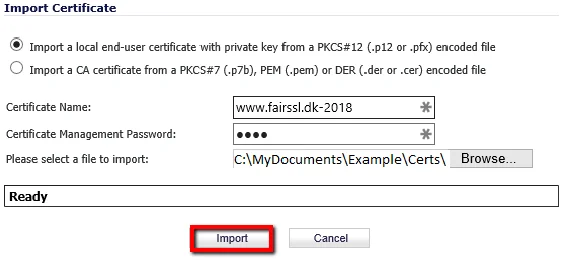
- Click Import
- Select Import a local end-user certificate
give the certificate a friendly name so you can easily recognise it, e.g. common name and year
Click Browse and select your .PFX file
Enter the password for the .PFX file, if you have used CSR service you will have gotten the password on an SMS
Click Import
We recommend that you test the installation with our server tester on https://www.fairssl.net/en/ssltest/
Intermediate certificates
Here you can find the intermediate certificates from different Certificate Authorities.
We recommend that you use the intermediate certificate you got with your server certificate, and only download from here in case you lose it, as the one you get in the mail will always be the correct one for your server certificate.
Strengthen your TLS security
Use the Mozilla SSL Configuration Generator to generate a secure TLS configuration with modern cipher suites and protocol settings.
Mozilla SSL Configuration Generator guide